The Short Version

Fantasy Grounds Unity (FGU) is the desktop app most of my tables live in. It looks like a lot on day one; it isn't. Do the first four steps below before your one-on-one and we'll spend that hour touring the world instead of watching download bars. Everything else on this page is here for when you want it.
-
Install
Make a free Fantasy Grounds account, download the free client, sign in. The Demo version is all you need. How
-
Join
Join a Game, search for host zeldaharvestmoon, enter the password I send on Discord, press Play. How
-
Type
/console skipFirst thing after you're in, every session. Then turn it into a one-key button so you never have to remember it again. How
-
Claim Your Hero
Click your character's portrait in the Character Selection window. Your sheet opens, and it's yours from then on. How
-
Learn Three Moves
Talk in the chat box, roll by clicking the little dice on your sheet, and Ctrl+click an enemy to target it. How
-
Play
The Combat Tracker tells you when it's your turn. Move, target, click Attack, then Damage. Fantasy Grounds does the math. How
Download & Install

Do I have to buy anything?
No. Fantasy Grounds Unity is free to download and run in Demo mode, and because I host with the Ultimate licence, Demo players can join my games at no cost. Every rulebook, map, token and character sheet lives inside my campaign and is shared with you when you connect. If a website ever asks you to pay for Fantasy Grounds to play with me, close it and message me instead.
Setting it up, start to finish
- Create a free account at fantasygrounds.com. Your username there is the name everyone at the table will see next to your rolls, so pick one you're happy with.
- Download the client from the Fantasy Grounds Unity page and install it like any other program. It runs on Windows, macOS and Linux. (There is a Steam version too; either works, but the direct download is the simplest and it's what my screenshots show.)
- Sign in when the launcher opens, using the account you just made.
- Update. If a green Update Available bar shows near the bottom of the launcher, click it. Fantasy Grounds fetches the update and restarts itself. You and I must be on the same version to connect, so make this a habit before every session.
Leave a little room. The first time you join, Fantasy Grounds copies my campaign's books and maps to your machine. A few gigabytes of free disk space keeps that painless.
What else do I need?
- A headset and microphone. Fantasy Grounds has no voice chat of its own; we talk on Discord, so keep Discord open beside the game.
- A mouse with a scroll wheel and a middle button. Trackpads work, but maps are far nicer to pan and zoom with a wheel.
- A second monitor is lovely and entirely optional.
If the install puts up a fight, message me on Discord and we'll slay it together. We also run a full tech check at your one-on-one before Session One.
Joining My Game

Where is the table?
Everything in Fantasy Grounds lives inside a campaign, and the campaign lives on my computer. You don't build or download anything; you connect to mine through the cloud. Three things get you in:
- My host name: zeldaharvestmoon
- The campaign name: your table's code (for example WDH0004). It's on your Discord channel and your StartPlaying listing.
- The password: I send it to you on Discord before your first session. It is case-sensitive, so copy and paste it.
Step by step
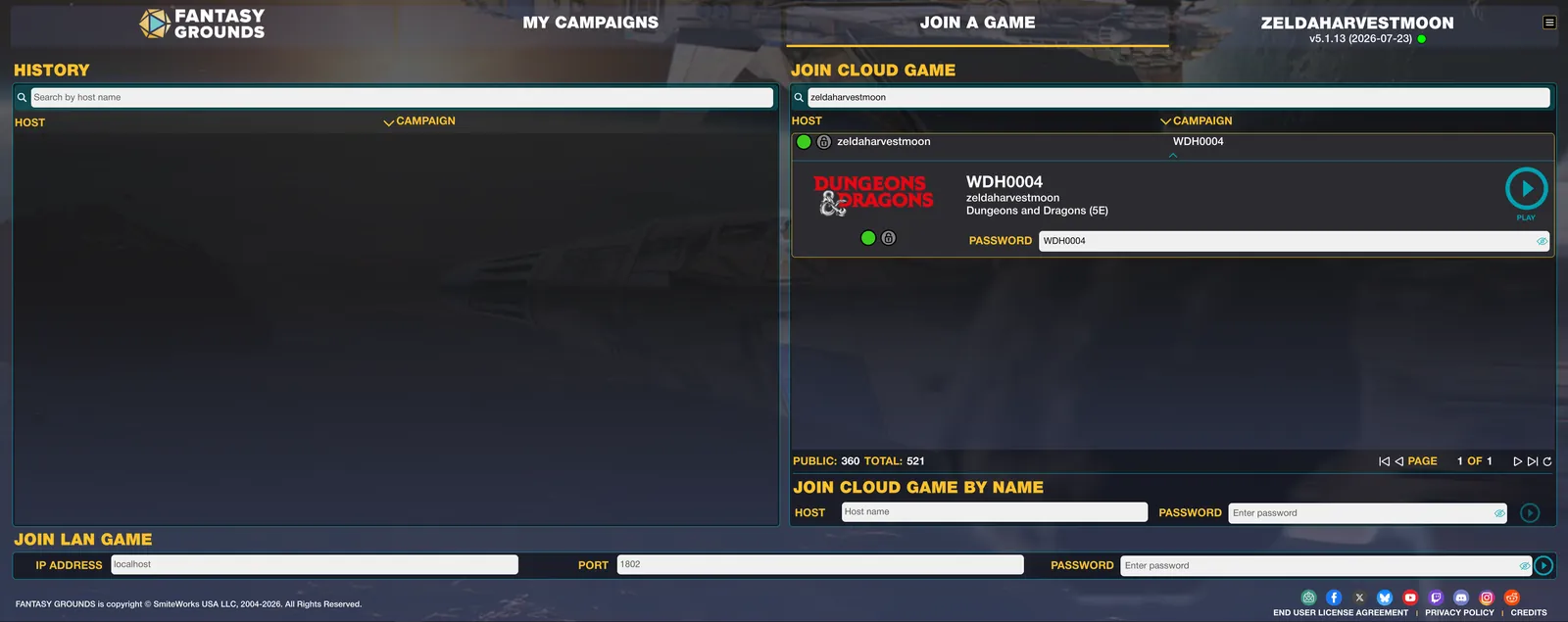
- Open Fantasy Grounds and click Join a Game at the top of the launcher.
- In the Join Cloud Game panel on the right, type zeldaharvestmoon in the search box. My table appears in the list with a green dot (I'm online and hosting) and a padlock (it wants the password).
- Click the row to expand it, paste the password into the Password box, and press the round Play button.
- The first time, Fantasy Grounds copies the campaign's files to your machine. Depending on the table and your connection this can take a few minutes, and it's slowest when the whole party is connecting for the first time at once. Let it run. Every join after that only copies what changed, so it's quick.
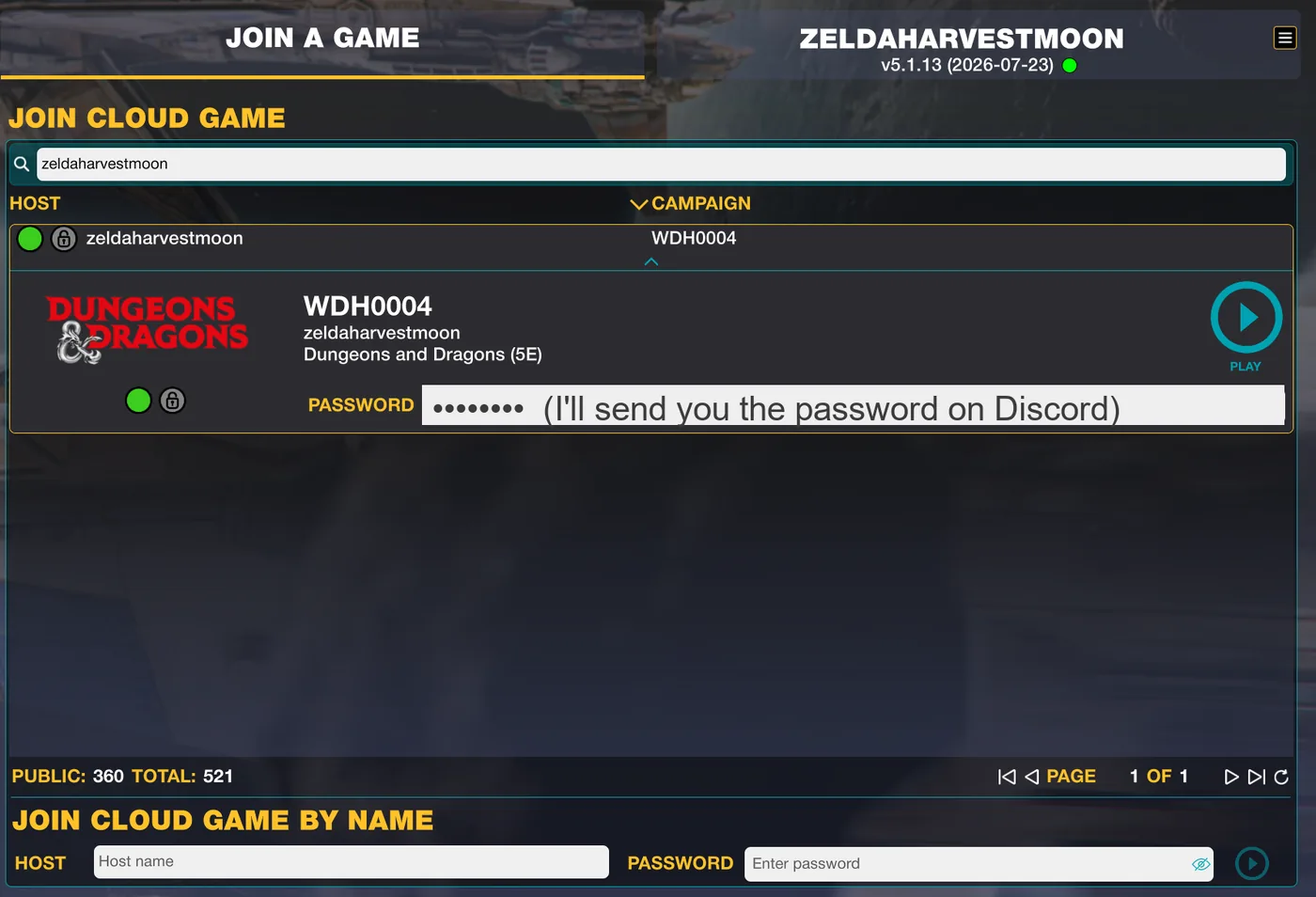
Prefer to skip the search? Scroll down to Join Cloud Game by Name, type zeldaharvestmoon as the host, add the password, and click the arrow. After your first visit the table also shows up under History on the left for one-click rejoining.
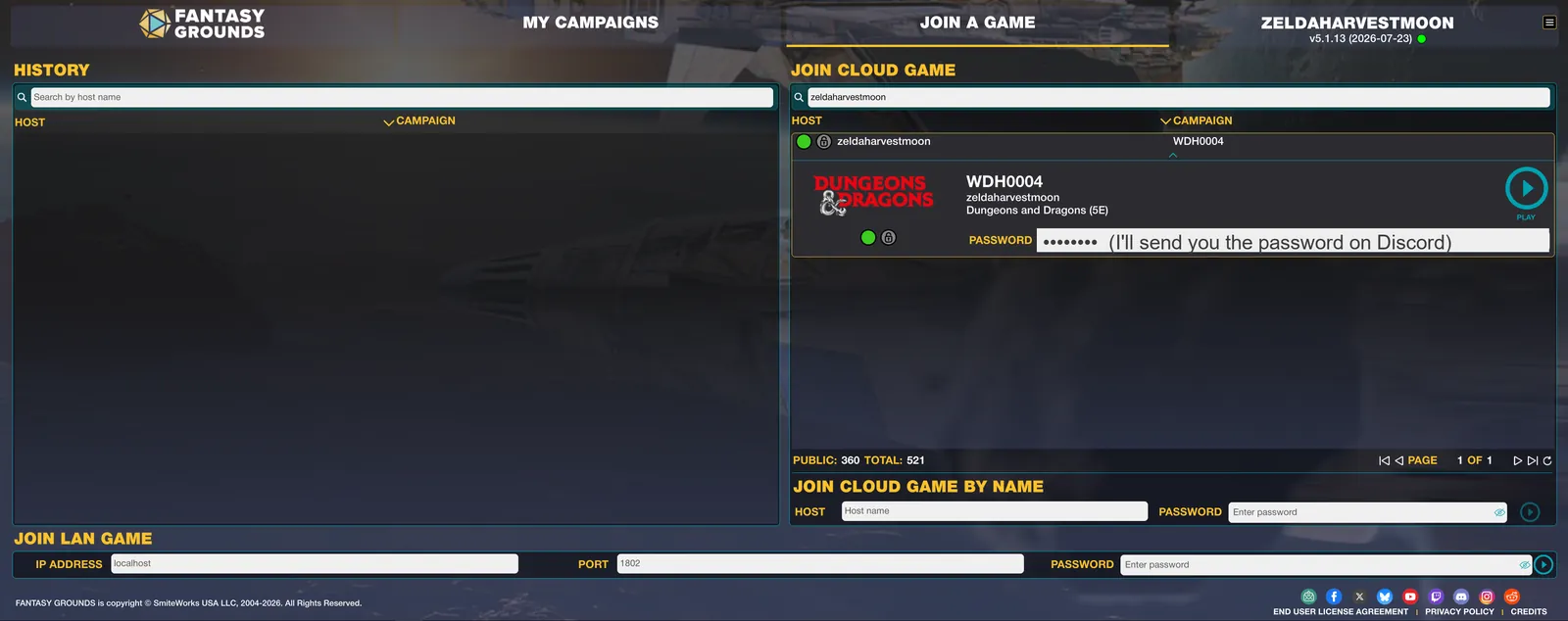
Can't see my table? It only appears while I'm hosting, which is usually 10–15 minutes before start time. Clear the search box, click the refresh arrow at the bottom of the list, and if it's still missing, use Join Cloud Game by Name. No port forwarding or firewall fiddling is ever needed on your side; that's the whole point of the cloud.
The first-visit windows
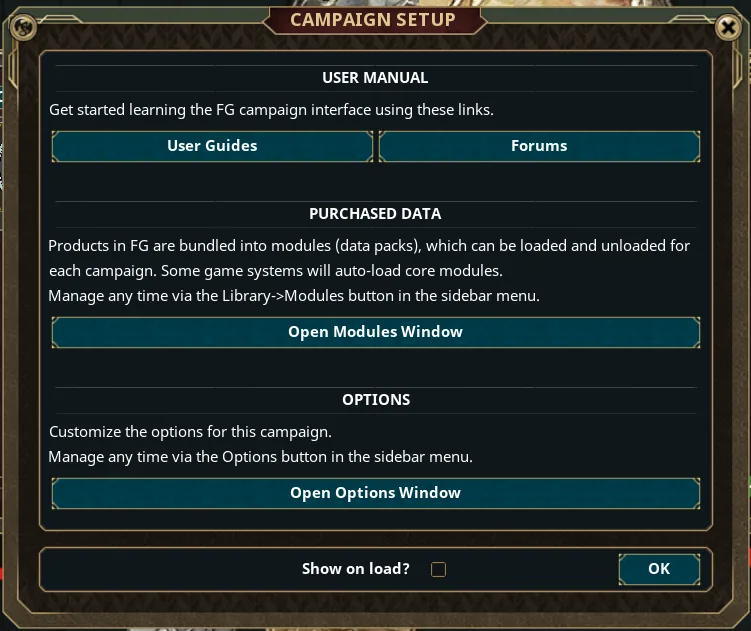
The very first time you join a campaign, a Campaign Setup window pops up in the middle of the screen. Untick show on load (you only need to see this once), click Open Modules Window if you're curious what books I've shared, then click OK. If Fantasy Grounds asks which modules to load, load everything I've shared: All Rules is the safe choice. Behind it waits the Character Selection window, and that's where your hero is.
Right After You Log In
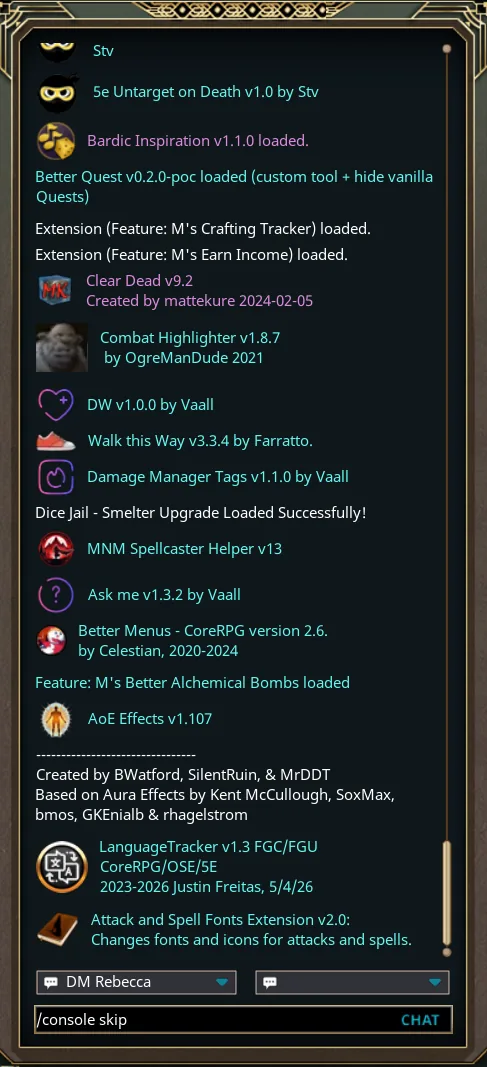
Type this in the chat box, then press Enter
/console skip
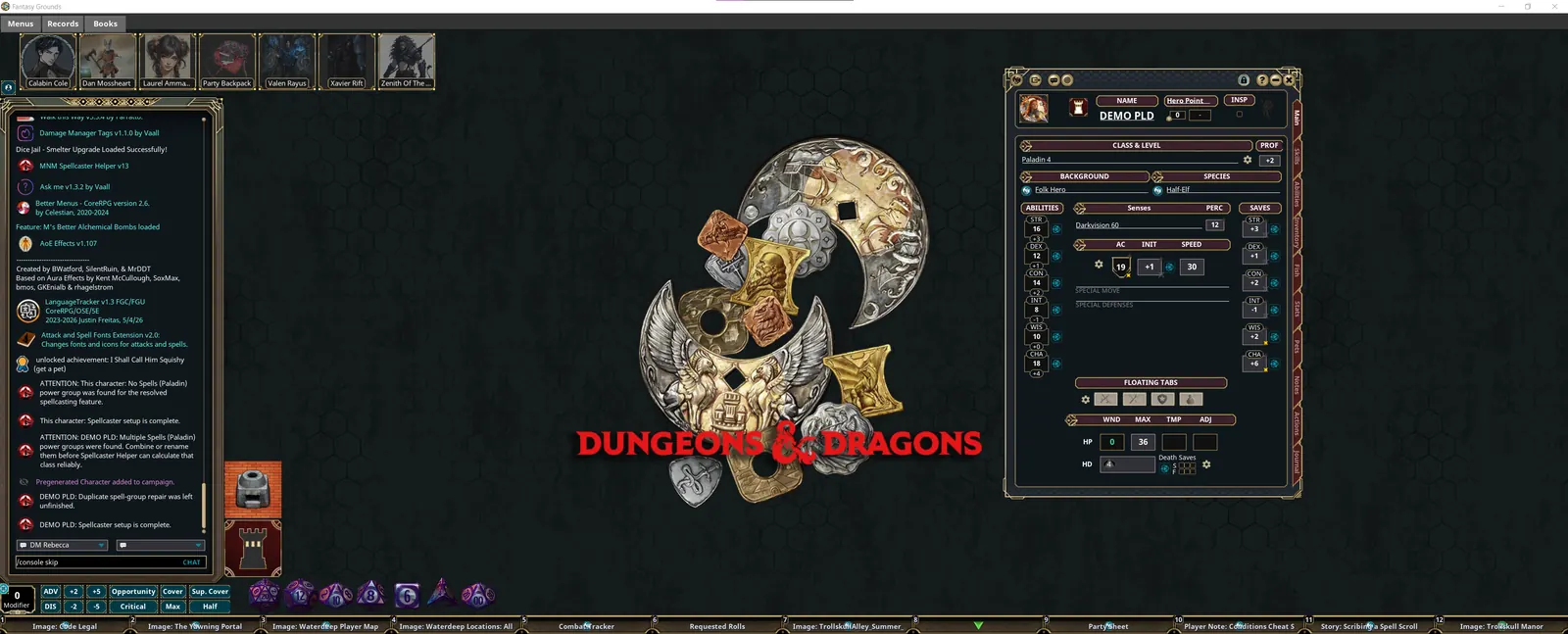
Why: my campaigns run a handful of extensions, the add-ons that give us nicer automation, effects and themes. Now and then one of them writes a harmless warning to Fantasy Grounds' Console, the app's behind-the-scenes log. By default, Fantasy Grounds pops that Console window open on your screen the instant a message lands, sometimes mid-combat, right over the map. The messages don't matter; the pop-up is the nuisance.
What it does: /console skip is a built-in Fantasy Grounds command that stops
the Console from opening itself for the rest of your session. Nothing dramatic happens when you press
Enter, and that's the point. It resets every time you launch the game, which is why it's the first thing
to do after you're in, and why we turn it into a button.
Run it now
- Click the chat entry box, the empty line at the bottom of the chat window on the left.
- Type
/console skipexactly: a slash, the word console, one space, the word skip. - Press Enter. If a Console window is already open, close it with its X.
Make it a button
- Type
/console skipin the chat entry box again, but don't press Enter. - Click and hold on the text you just typed, then drag it onto an empty slot of the hotbar, the row of numbered boxes along the bottom of the screen. Release. The slot now shows your command.
- From now on, click that slot or press its key and the command runs. The slot's label tells you which key: a plain 4 means F4; C-4 means the Ctrl page, Ctrl+F4. Fantasy Grounds remembers your hotbar for this campaign, so the button is waiting next week.
Made a mess of a slot? Right-click it and choose Clear, then drag the text again. And if the Console ever pops up anyway, you probably missed the space or a letter; press your button and carry on.

Claiming Your Character

Where is my hero?
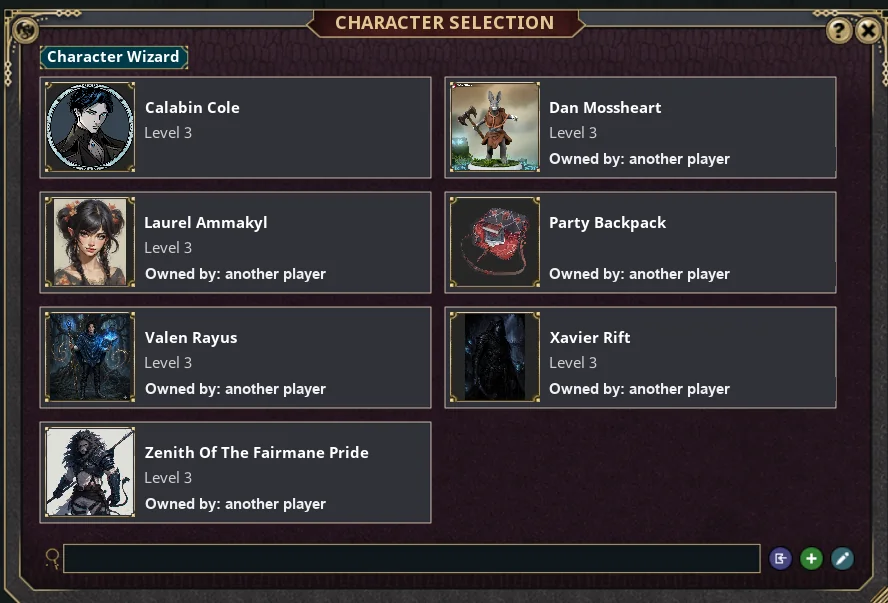
We build or import your character together before Session One, so when you first join, they're already waiting. The Character Selection window opens by itself, and a placeholder with your Fantasy Grounds username sits in the top-left corner of the screen until you pick someone.
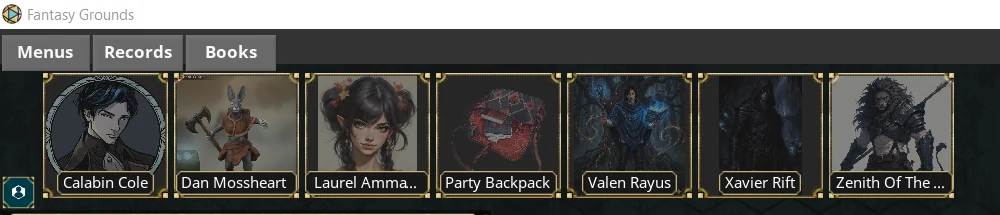
- Click your character's portrait in the Character Selection window. That claims them: the character sheet pops up in the middle of the screen and the portrait moves to the character bar in the top-left corner.
- Closed the sheet? Click your portrait in that top-left bar and it comes straight back.
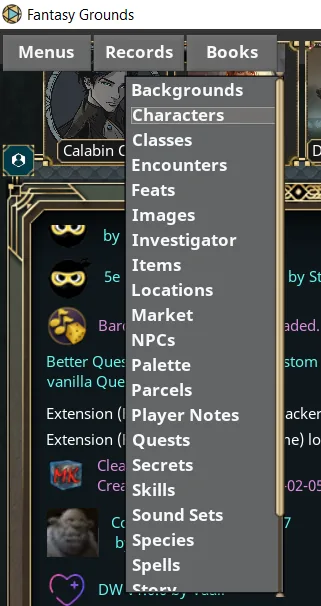
- Need the selection window again later? Click Records in the top-left corner and choose Characters.
Claimed the wrong one? Right-click the portrait in the top-left bar and choose Release, then pick again. Don't release the character you're actually playing: releasing also clears them from your local cache, and while I can hand them back, it costs us a re-download.
Face, token, colour
- Portrait and token: click the portrait in the top-left corner of your sheet to open the Portraits and Tokens window, then the green + to browse the portrait bags. If you have your own art, send it to me on Discord and I'll set it up as your token on my side.
- Your colour: Menus → Options has a Color: Active character entry. That colour marks your pointers and spell areas on the map, so pick one nobody else has.
- Stepping away: type
/afkor right-click your portrait and choose Toggle AFK. A little clock shows on your portrait until you type in chat again.
Building a character inside Fantasy Grounds
You don't have to; most players hand me a concept or a D&D Beyond sheet and we do it together at the one-on-one. But if you'd like to build in-app, the 5E Character Wizard is good at it. Click Records → Characters, press the Character Wizard button in the top-left of the selection window, and work through the tabs across the top: Class, Background, Species (the 2014 books call it race), Abilities, Equipment, then Commit. Each tab shows a question mark until it's complete and a tick when it is. Choose options with the green + buttons and the dropdowns, and read the full text of anything by clicking its link icon. My tables use the 2014 rules and books, so stick to those sources in the Source dropdown. On the Commit tab, name your hero and press Save; the finished sheet opens, filled in.
Ability scores on the Abilities tab can use standard array, point buy, or rolled 4d6-drop-lowest. Drag scores between boxes to swap them. The only row you can edit by hand is Misc, which is where any extra bonus goes.
Getting Around
The lay of the land
My table runs the Better Menus extension, so if you've watched Fantasy Grounds videos, one thing will look different: the usual sidebar down the right edge is gone. In its place are three drop-down buttons in the top-left corner, and everything the sidebar used to hold lives in them.
Windows, menus and links
- Move a window by dragging its title bar or frame. Resize it from the bottom-right corner. Close it with the X in its top corner. Losing a window is never a disaster: your sheet comes back from your portrait, the tracker from Menus.
- Right-click almost anything for a radial menu of what you can do with it. When in doubt, right-click.
- Little link icons next to spells, items, skills and features open a window describing that thing. Drag a link onto the hotbar to keep it one key away.
- Interface too small or too large? Type
/scaleui 125in chat (anything from 50 to 200) and/scaleui 100to reset./scaledice 100does the same for the dice tray (80 to 120). - Personal settings live under Menus → Options: your character colour, chat font, dice behaviour and more. Nothing in there can break my game, so explore.
Talking in Chat
Speaking as your character
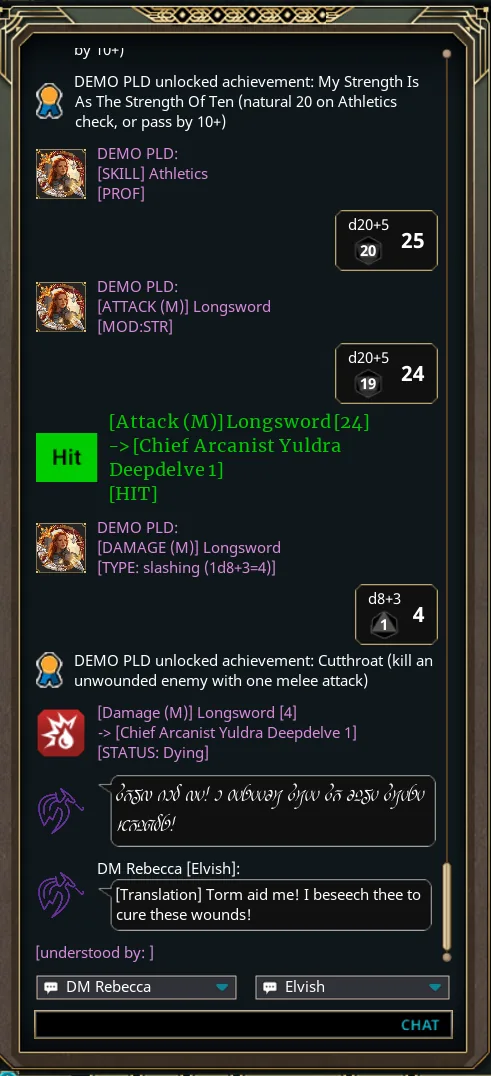
Click the chat entry box, type, press Enter. Whatever you say goes out as your active character. Voices happen on Discord; the chat box is for in-character lines you want on the record, quick out-of-character notes, whispers, and reading the dice.
- Shift+Enter adds a line break instead of sending.
- Alt+Enter sends out of character (or start the line with
/ooc). - Ctrl+Shift+Enter sends an emote ("Bob scratches his
head"), or use
/emote. - Ctrl+Enter marks a line as an intended action ("I open the lock"), handy when you want me to adjudicate before it happens.
- ↑ and ↓ in the entry box walk back through what you've typed.
- Languages: of the two dropdowns just above the entry line, the left one is who you speak as and the right one is the language. Pick one your character knows and only characters who share it can read you; everyone else sees runes.
Whispers, votes and moods
/w Name your messagewhispers to a character. Type part of the name and press Tab to auto-complete it./w GM your messagewhispers to me, and/replyanswers whoever whispered you last./vote Should we hide from this orc?puts a voting box in chat. Click it to cycle between empty, yes and no./mood nervoustags your lines with a mood until you clear it with/moodon its own; use brackets for more than one word./helplists every command Fantasy Grounds knows.
Right-click any chat message and choose Copy Text To Clipboard to save a line for your notes. Right-click the chat window itself for Unlock Position if you'd like to move it.
Rolling Dice
Mostly, you roll from your sheet
Wherever you see a little dice icon on your character sheet, clicking it makes that roll with every modifier already added: ability checks down the left of the Main tab, saving throws down the right, initiative, death saves, every skill on the Skills tab, and every attack, damage and spell on the Actions tab. The result lands in chat with the total worked out. This is how you'll roll 95% of the time.
Throwing dice by hand
- Roll one die: click and hold a die in the tray, move the mouse, and release while it's still moving. Dropping it while the mouse is still doesn't count as a roll (the die just sits there), so give it a flick.
- Roll several: click and hold a die, then right-click to add another copy each time before you release. Or right-click a die in the tray and pick a number from the menu.
- Advantage / disadvantage: click ADV or DIS in the tray before you roll. It works for sheet rolls too, and it clears itself after one roll.
- Modifiers: type a number into the modifier box beside the tray, or use the +2, +5, −2
and −5 buttons, before your roll. It's added to that one roll and then cleared.
/mod 2 Blessdoes the same from chat with a label. - From chat:
/die 1d20+5 Perceptionrolls and labels it. - Quick modifiers: the buttons beside ADV and DIS (+2, +5, −2, −5, Opportunity, Critical, Cover, Sup. Cover, Max, Half) each set up one common situation. Click one just before the roll it belongs to; it clears itself afterward.
- Make them yours: the Dice options (under Menus) let you change the dice
set, size and colours.
/dicevolume 30quietens the clatter.

Your Character Sheet
Six tabs down the right edge
- Main: ability scores, saves, armour class, initiative, speed, hit points and wounds, hit dice, inspiration, death saves.
- Skills: every skill with its proficiency star and a dice icon.
- Abilities: your feats, features, traits, proficiencies and languages, each with a link to its full text. Reading only.
- Inventory: what you carry, your coins, and your weight limit.
- Notes: personality, ideals, bonds, flaws, appearance, and free notes.
- Actions: weapons, features you activate, and spells. This is where combat happens; it gets its own section below.
- Fish, Stats, Pets, Journal: extra tabs added by my extensions. We'll look at any that matter to your character at the one-on-one; until then they can wait.
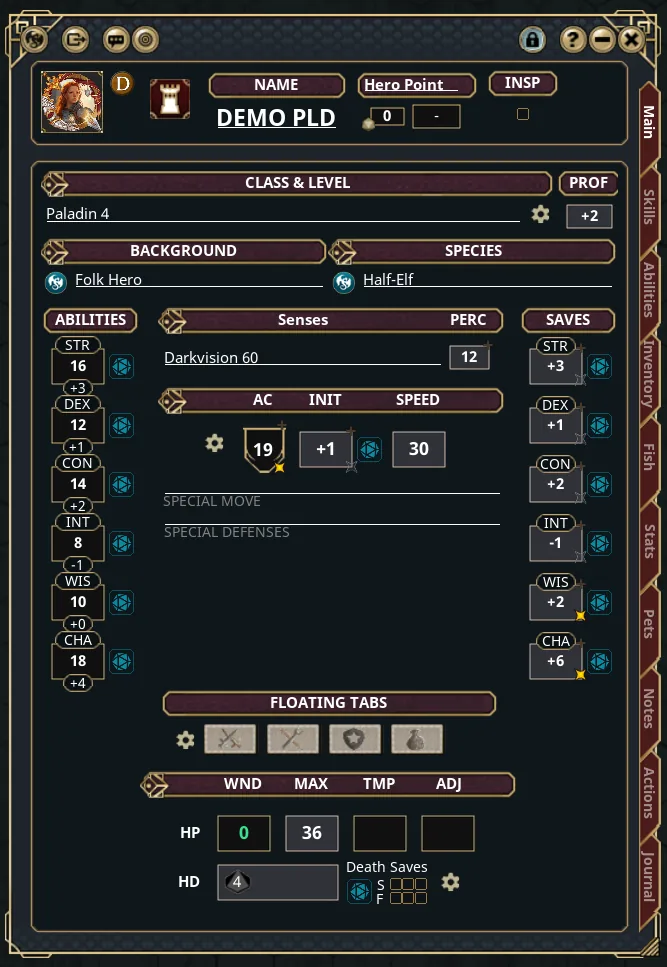
Icons worth knowing on the Main tab
Skills, inventory and notes
- Skills: left to right, each row has a link, its proficiency star, the name, the ability it uses, a Misc box for a bonus, a dice icon, and the total. A small icon beside Stealth warns that your armour would impose disadvantage; Fantasy Grounds applies it automatically.
- Inventory: the badge at the end of each item cycles through C (carried), E (equipped) and grey (not carried). Equipped weapons appear on your Actions tab and equipped armour sets your AC, so if a new sword is missing from your attacks, it isn't equipped yet. Type a container's name into an item's Location box to pack it (a backpack inside a bag of holding is allowed). Items that need attunement get a tick box, and the header shows how many attunement slots you've used. Hold Shift while dragging to move a whole stack.
- Notes: unlock the sheet, click any line, and type. Pressing Enter in the bigger boxes starts a new line. Your backstory fits nicely here.
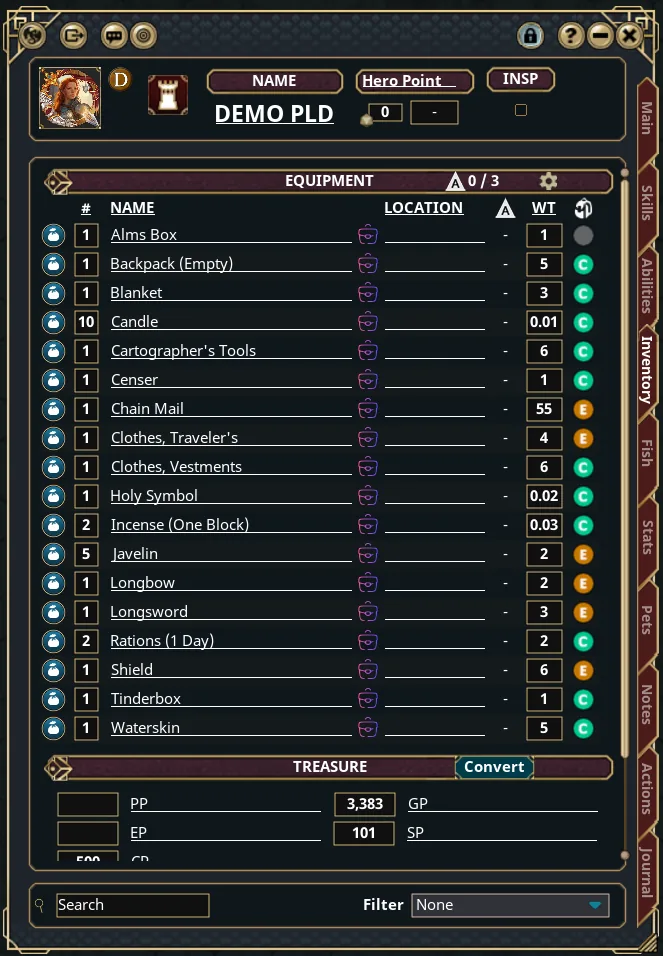
The Actions Tab
Three stacked sections: weapons, then features you activate, then spells. What's in each depends entirely on your class, race and gear, but the buttons all behave the same way: pick a target, click a button, read chat.
Weapons
Each weapon line shows, left to right: equipped toggle, attack type, which hand, the name (and ammo if it uses any), the Attack button with its bonus, the Damage button with its dice and damage type, and a cog.
- Attack (the orange button showing your bonus) rolls to hit against your targets. Damage (the red button showing the dice) rolls and applies the damage, resistances and all. You can also drag either button straight onto an enemy token or its tracker entry, which skips targeting entirely.
- The attack type icon cycles melee / ranged / thrown, which is why a dagger gets two lines. The hand icon cycles main hand, off hand and two-handed, and versatile weapons upgrade their damage die when you go two-handed.
- Ammo ticks itself down each shot.
- The cog opens the weapon's guts (stat used, damage dice, proficiency). You'll almost never need it; if a weapon looks wrong, tell me and I'll fix it from my side.
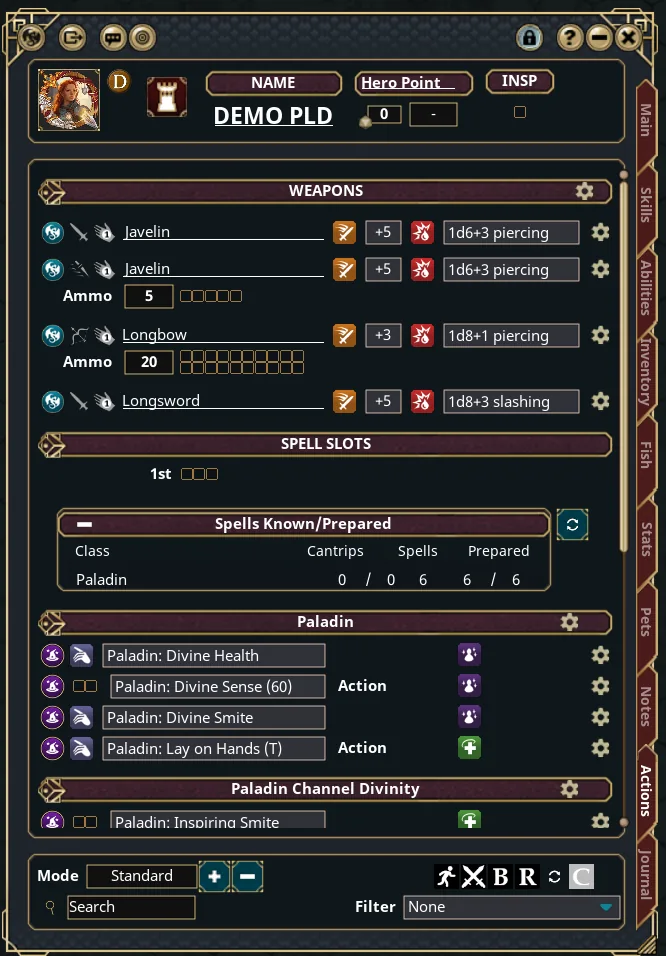
Features and spell slots
- The top of the middle section shows your spell slots as rows of pips. When you cast a spell, click one pip of that level; Fantasy Grounds doesn't spend slots for you. They refill on a rest.
- Features with limited uses (Second Wind, Rage, Channel Divinity, Ki) have tick boxes beside them. Click a box to spend a use; rests clear them.
- Features that just happen in the background, like Lucky, don't appear here at all. That's normal.
- Every feature's link opens its rules text, and its cog reveals any hidden lines.
Spells and their five buttons
Spells are listed per class and per level. Beside each spell you'll see a link, its name, and one or more of these buttons. With a target selected, click and Fantasy Grounds handles the rest:
Upcasting: after the save or attack, click and hold the Damage button (the dice appear on your cursor), right-click once per extra die, then throw. Fireball at 5th level is 8d6 plus two right-clicks. Spells with limited uses (innate spells, magic items) show tick boxes just like features.
A few extras from my extensions: the letters after a spell's name are quick tags, for example (B) bonus action, (C) concentration, (T) touch and (S) self; the green tick marks a prepared spell; and the speech-bubble icon posts the spell's description to chat so everyone can read it. Lower down, the Generic Actions block gives you one-click Grapple, Shove, Dash, Disengage, Dodge, Help, Hide, Ready, Search and friends.
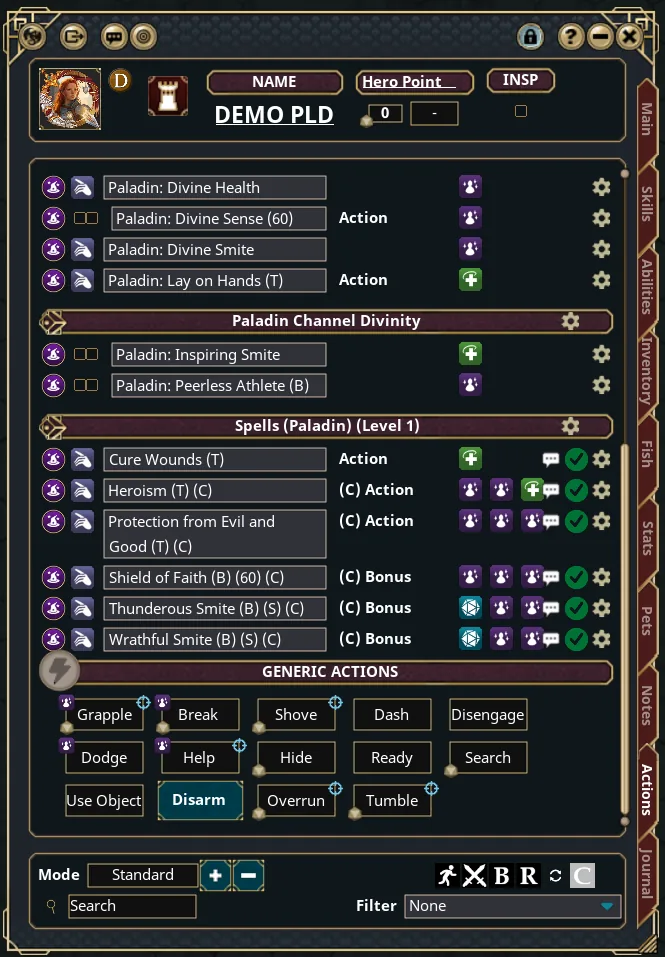
The Mode button
Bottom-left of the Actions tab is the Mode box; clicking it cycles Combat, Standard and Preparation. Live in Combat mode. Switch to Preparation mode (with the sheet unlocked) when you finish a long rest as a wizard, cleric, druid or paladin: it expands every spell so you can tick the ones you're preparing today, and it's also where you can correct a feature's number of uses. Flip back to Combat mode when you're done.
Maps & Tokens
Looking around
When I share a map, it either opens as a window or, more often at my table, fills the whole desktop behind your other windows. Either way your token is already placed and each grid square is five feet.
- Zoom: scroll the mouse wheel, or press C and X.
- Pan: hold the middle mouse button and drag, hold Space and left-drag, or press W A S D. With no token selected, the arrow keys pan one square at a time.
- If the map is a window, move it by its title bar or by dragging any empty bit of map, and resize it from the bottom-right corner. The toolbar sits along the top edge: its first button, Zoom to Fit, brings a lost map back into view, and its last one toggles a little navigation panel.
- Find yourself: the Find my token icon on your sheet, or a double-click on your portrait, centres the map on you.
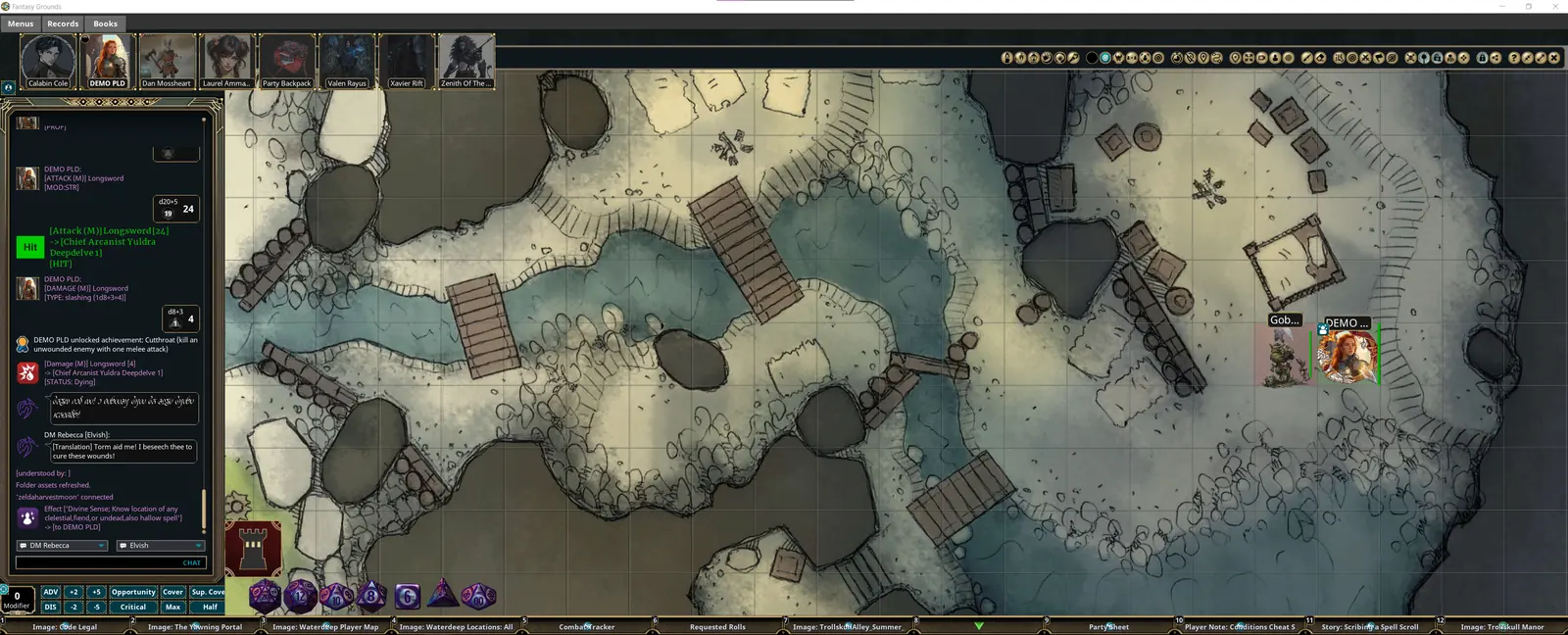

Moving your token
- Select your token with a left-click, then drag it or steer it with W A S D or the arrow keys.
- There's no approval step at my table: you simply go. Walls and closed doors still stop you, and a distance label follows the drag so you can count your movement.
- Turn your token with Shift and the mouse wheel while hovering over it.
Light, sight and pointing
- Most of my maps use line of sight and lighting. Bright light shows in full, dim light is darker, and walls black out what you can't see. Places you've already explored stay visible but faded. Creatures pop into view when you round a corner and vanish when you lose sight of them, which is exactly as scary as it sounds.
- Ping a spot so everyone looks: hold Space and double-click it, or use the ping button on the toolbar.
- Quick pointers: hold both mouse buttons and drag to draw an arrow. Add Shift for a box, Ctrl for a circle, or Alt for a cone. Perfect for "which goblin?" and for checking whether a fireball catches your friends. Click both buttons again and release to erase it.
- If I've turned on drawing, the pencil and eraser buttons let you doodle on the map in your colour.
Targeting, the Key Skill
Ctrl+click
Fantasy Grounds can only roll against something if it knows what you're aiming at. Targeting is how you tell it, and it's one gesture:
- Hold Ctrl and click the enemy's token on the map, or their line in the Combat Tracker. A line appears showing the range, and the target's name appears under yours in the tracker. (On a Mac, use the Control key.)
- Several targets? Ctrl+click each one in turn. This is how you fireball a room.
- Wrong one? Ctrl+click it again to un-target it.
- Everything at once: the map toolbar has Target Enemies, Target Friendlies and Clear Targets buttons, plus a box-select targeting tool for dragging a rectangle around a crowd.
- No targeting at all: drag an Attack, Damage, Save or Heal button from your sheet and drop it directly on a token or tracker entry. Handy for a single quick strike.
Targets stick. They stay selected until you clear them; the one exception is that my table drops a target automatically the moment it dies. Before every button press, glance under your name in the Combat Tracker and make sure the list is who you mean, or your Cure Wounds goes to the goblin.
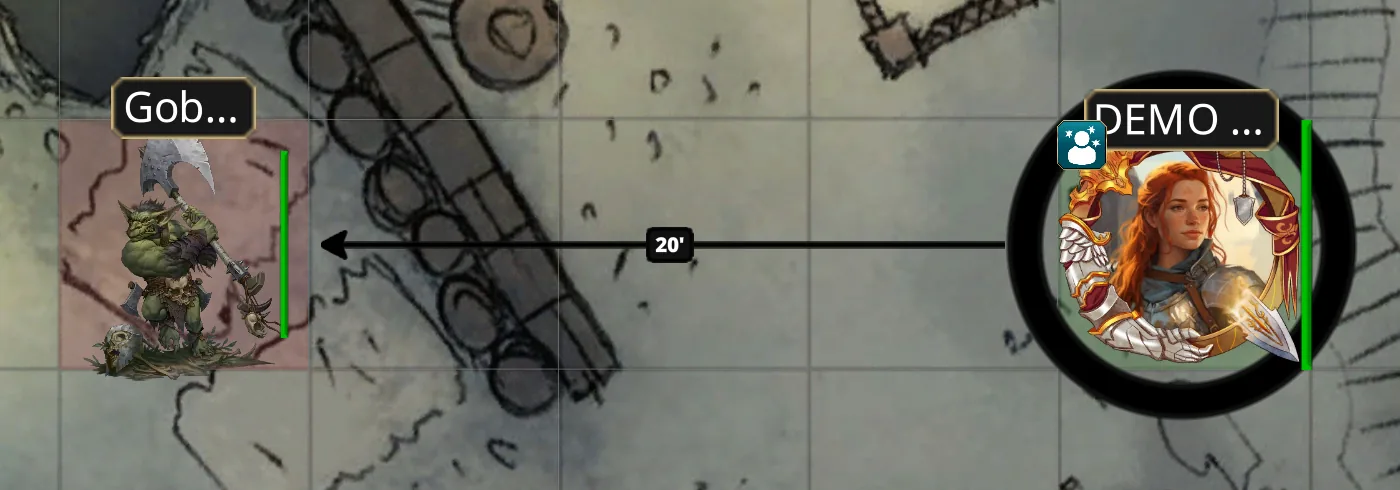
Your Turn in Combat
The Combat Tracker
When a fight starts, I drop the enemies onto the map and roll their initiative. Open the Combat Tracker from Menus in the top-left corner (or drag it onto your hotbar once and never look for it again) and keep it open for the whole fight. It lists everyone in initiative order, marks whose turn it is, shows the party's health, and lists each combatant's targets and active effects. Rows are colour-coded: green for the party, red for enemies, blue for neutral folk. Exactly how much you see of the monsters is up to me.
- Roll initiative by clicking the dice icon beside INIT on your Main tab. The tracker sorts itself.
- On your turn: move, then target, then act from your Actions tab. Then tell me you're done, or press the green ▼ at the bottom-left of the tracker if I've let players end their own turns.
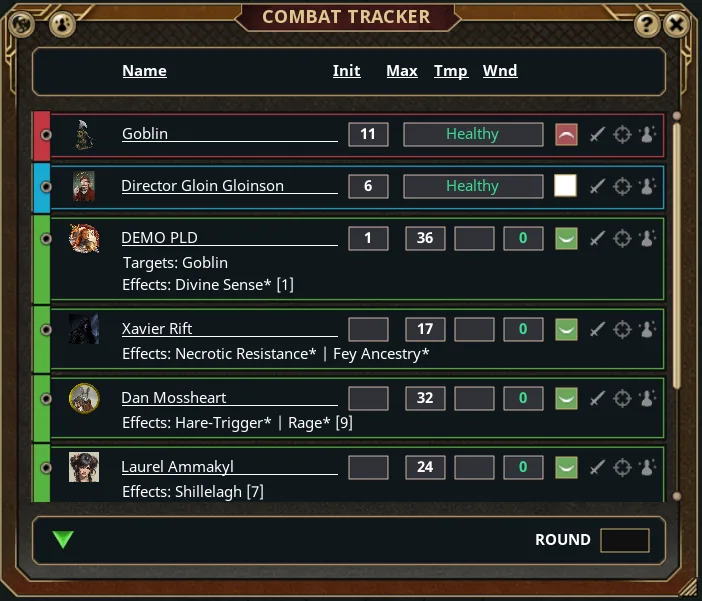
Attacking, saving, healing
- Weapon attack: target, click Attack. Chat says hit or miss (unless I've hidden that, in which case I'll tell you). On a hit, click Damage. Fantasy Grounds applies it, halves or cancels it for resistance and immunity, and updates the tracker.
- Spell attack: exactly the same, from the spell's buttons.
- Save spells: target everyone in the area, click Save, then Damage. Fantasy Grounds rolls every save, notes who passed, and applies full or half damage to each one correctly.
- Buffs and conditions: target an ally or enemy and click the spell's Effect button. Bless, Bane, Hunter's Mark and friends then apply themselves to the rolls they affect.
- Healing: target the ally (yes, Ctrl+click a friend), click Heal.
- Spent a slot? Tick the pip. Used a feature? Tick its box. These are the two things the automation leaves to you.
- Taking damage needs nothing from you; it appears in your Wounds and on the tracker. At 0 hit points, roll death saves from the Main tab and the boxes fill in by themselves.
Fights without a map
Some skirmishes stay in the theatre of the mind. Nothing changes except where you click: Ctrl+click the enemy's entry in the Combat Tracker instead of a token, then use your Actions tab as usual. Dragging a button onto a tracker entry works too.
Between Fights
Rests, loot and notes
- Rests are something I trigger from my side. A short rest lets you double-click your hit dice icon to heal; a long rest refills hit points, slots and daily features on its own. If something didn't reset, say so and I'll nudge it.
- Loot and coin get handed out through the Party Sheet (under Menus) and the Party Backpack. Drag items from there into your Inventory; coins go into your coin boxes. Hold Shift to drag a whole stack.
- Handouts, maps and story text I share with you pop up as windows and stay available under Records afterward (maps under Images, text under Story or Player Notes), so you can reread that cryptic letter at leisure.
- Notes tab for your own record-keeping, and Stars & Wishes after the session for the things you want more of.
Levelling up
When I say the words, open your Main tab and click the cog beside your class and level, then Level Up. The Character Wizard opens on your existing character: press the level-up button (or the Add Class button if you're multiclassing), make any new choices it asks for (subclass, spells, feats, ability score increases), then Commit to review and Save. Your sheet reopens with everything added. Most players like doing this together at the start of a session; either way, I'll double-check it.
When It Misbehaves
That's my Better Menus extension. Stock Fantasy Grounds has a sidebar down the right edge; my table replaces it with the Menus, Records and Books buttons in the top-left corner. Everything the videos find in the sidebar is in one of those three: tools under Menus, shared records under Records, rulebooks under Books.
The table only shows while I'm hosting, so check the time. Clear the search box and press the refresh arrow at the bottom of the list, then search zeldaharvestmoon again. If it's still hiding, use Join Cloud Game by Name with my host name and the password. If that fails too, ping me on Discord; I may still be loading the campaign.
Passwords are case-sensitive and easy to mistype. Copy it from our Discord chat and paste it in, then click the little eye icon beside the box to confirm what you pasted.
A first join can take five to ten minutes on a big campaign, longer if the whole party is joining at once. Give it fifteen minutes before you worry. If nothing has moved by then, close Fantasy Grounds, reopen it, and join again; it resumes where it left off. Very slow every week? Check your free disk space and try a wired connection.
We have to be on the same version of Fantasy Grounds. Go back to the launcher and click the green Update Available bar, let it restart, and join again. Doing this before every session prevents it.
Press your /console skip button (or type it and press Enter) and close the window with
its X. The messages inside are harmless. Full details in Right After You Log
In.
Either you already claimed them (look at the character bar in the top-left corner and click the portrait), or someone claimed them by mistake, or I haven't added them to the party yet. Tell me on Discord and I'll sort it in a moment. Please don't create a new blank character in the meantime.
Just join again the same way. Your character is still yours, your hotbar is still there, and your place in the fight is unchanged. Let me know on Discord voice so we can pause if needed.
A die dropped while the mouse is still isn't a roll. Click, hold, move, and release while it's still moving. Or skip the tray entirely and click the dice icon on your sheet for the roll you want.
Type /scaleui 125 (or any number from 50 to 200) in chat to resize the interface, and
/scaleui 100 to reset. If big maps stutter, /imagequality 1 lightens the
load and /vsync 1 stops your graphics card sprinting; closing browser tabs and video
helps too.
Your sheet: click your portrait top-left. The Combat Tracker: Menus, top-left. A map I shared: Records → Images (or ask me to share it again). The chat window can't be closed, only moved; right-click it and choose Reset Position if it wandered off.
If macOS says it can't verify the developer, open System Settings → Privacy & Security, scroll to the message about the blocked app, and click Open Anyway. Then remember: targeting is Control+click, not Command.
Still stuck? Discord me at zeldaharvestmoon. Nothing here is a silly question, and I would much rather fix it at 6:45 than at 7:05.
The Cheat Sheet
Everything above, boiled down. Bookmark this section for game night.
Keys and mouse
| Do this | To |
|---|---|
| Ctrl + click a token or tracker entry | Target it (again to un-target) |
| Enter in the chat box | Speak as your character |
| Alt + Enter | Speak out of character |
| Ctrl + Shift + Enter | Emote |
| Ctrl + Enter | Declare an intended action |
| Shift + Enter | New line without sending |
| ↑ / ↓ in the chat box | Recall earlier messages |
Tab after a partial name in /w | Auto-complete the name |
| F1–F12 | Fire a hotbar slot (Shift/Ctrl/Alt for more pages) |
| Drag chat text, an attack, a spell or an item onto a slot | Make a hotbar button |
| Right-click a hotbar slot | Clear it |
| Click, hold, move, release a die | Roll it |
| Right-click while holding a die | Add another die to the throw |
| Click, hold a Damage button, right-click | Upcast: add dice to the damage |
| Mouse wheel · C / X | Zoom the map |
| Middle-drag · Space + left-drag · WASD | Pan the map |
| Arrow keys with your token selected | Move one square |
| Shift + wheel over your token | Rotate it |
| Space + double-click the map | Ping |
| Both mouse buttons + drag | Draw an arrow (+Shift box, +Ctrl circle, +Alt cone) |
| Ctrl + wheel over a sheet number with a small cross | Nudge a bonus or penalty |
| Shift + drag an item stack | Move the whole stack |
| Double-click your portrait | Jump to the map your token is on |
| Right-click almost anything | See what you can do with it |
Chat commands
| Type | To |
|---|---|
/console skip | Stop the Console window auto-opening (every session) |
/w Name message | Whisper a player's character |
/w GM message | Whisper me |
/reply message | Whisper back to whoever whispered you |
/ooc message | Out-of-character line |
/emote does a thing | Emote |
/action opens the door | Intended action |
/mood wary · /mood | Set · clear a mood tag |
/vote question? | Put a vote box in chat |
/afk | Mark yourself away (typing clears it) |
/die 1d20+5 label | Roll from chat |
/mod 2 Bless | Add a modifier to your next roll |
/scaleui 125 | Resize the interface (50–200; 100 resets) |
/scaledice 100 | Resize the dice tray (80–120) |
/dicevolume 30 | Quieter dice (0–100, on, off) |
/imagequality 1 · /vsync 1 | Lighten the load on a struggling computer |
/help · /version · /info | List commands · show version · show your session info |
Shortcut rule: any command can be shortened as long as it stays unique, which
is why /w works for /whisper.
Where things live
| Looking for | Go to |
|---|---|
| Your character sheet | Click your portrait in the character bar (top-left) |
| Combat Tracker · Party Sheet · Options · Modules | Menus (top-left) |
| Character Selection window | Records → Characters |
| Maps and handouts I've shared | Records → Images |
| Story text, quests, your notes | Records → Story / Quests / Player Notes |
| Rulebooks and reference manuals | Books |
| A spell, item or feat to look up | Records → Spells / Items / Feats, or the link icon beside it |
| A secret roll for my eyes only | Drop the dice on the Dice Tower above the tray |
The rhythm of a turn
- Tracker says it's you. Read your targets under your name; clear any strays.
- Move (drag or keys).
- Ctrl+click your target(s).
- Actions tab: Attack or Save, then Damage, or Heal, or Effect.
- Tick the spell slot or feature box you spent.
- Say "done".
Fantasy Grounds is deep enough to spend years in, and this page only opens the door. When you want more, SmiteWorks' own Comprehensive Quick-Start Tutorial for Players and the shorter Play Now! Super Quick-Start (both by Hywel Phillips, revised by Zacchaeus) are the sources this guide condenses, with my own table notes layered on top. Fantasy Grounds is a trademark of SmiteWorks USA, LLC.